PDF to CSV Troubleshooting for Bank Statements
Diagnose empty extracts, scanned PDFs, missing transactions, reversed amounts, and broken descriptions before using a bank statement CSV.
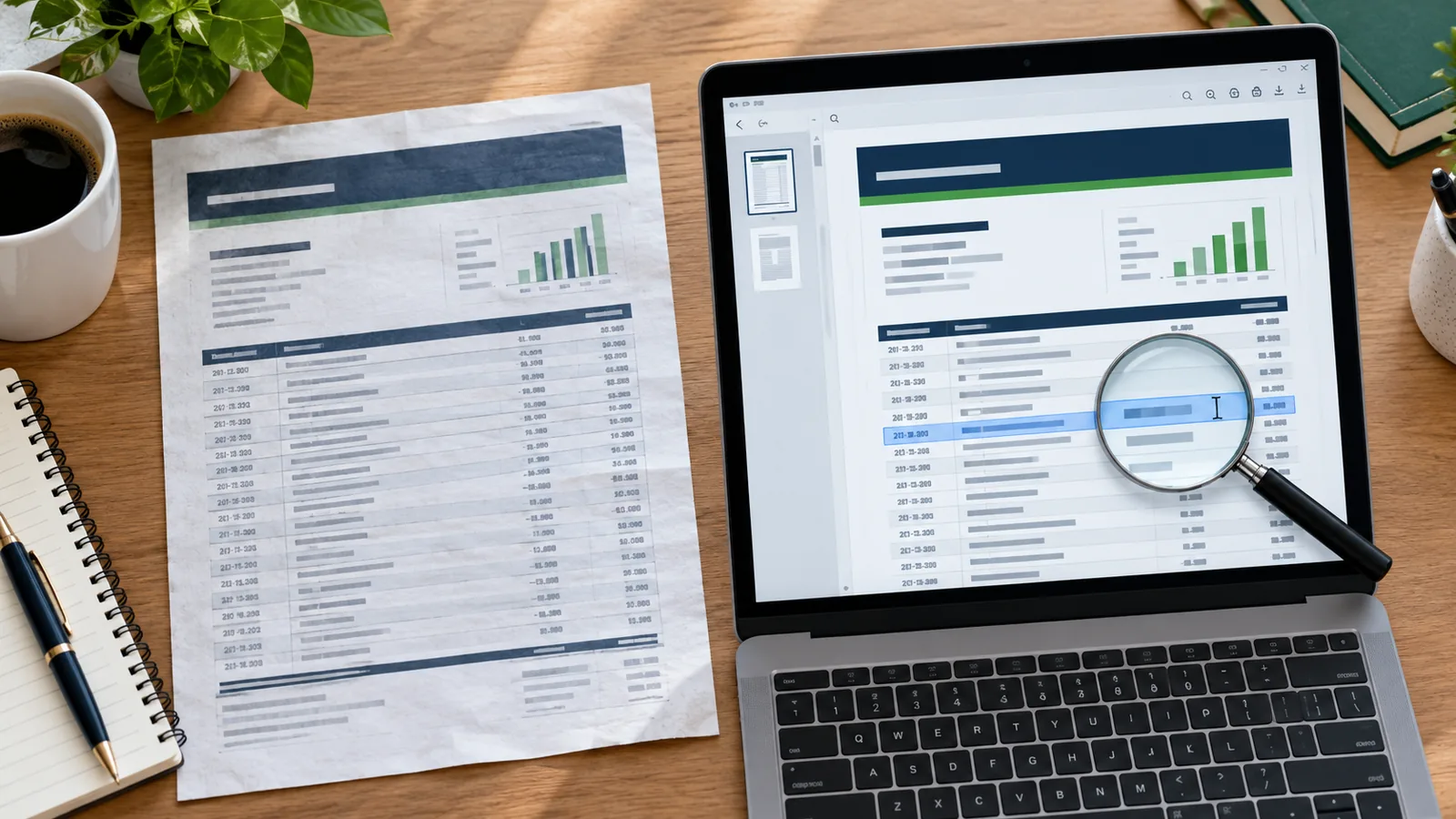
A bank statement can look perfectly readable while its PDF structure makes extraction difficult. Work through these checks before treating an empty or messy CSV as a finished result.
Nothing was extracted
Try selecting a transaction description in a PDF viewer. If you cannot select individual words, the page is probably an image scan. This PDF converter does not perform OCR on statement pages. Download the digital statement from your bank or run OCR separately, then check it against the original.
Rows are missing or repeated
Compare the first and last transaction on every PDF page with the preview. Page-break headers and wrapped memos can look like extra rows; the final row of a page can also be split. Use Edit Results to correct visible cells or exclude non-transaction rows. If a page is absent entirely, do not use the exported totals.
Amounts or columns look wrong
- Check a known withdrawal and deposit; banks use different debit, credit, and signed amount conventions.
- Compare a few consecutive running balances with the source PDF.
- Look for headers that changed between months before merging files.
- If dates are ambiguous, compare them with the statement period and original page.
The PDF is password protected
If you know the password, open or unlock the statement before converting it. Never remove a password from a document you are not authorized to access. The site has a separate local PDF unlock tool for files you can lawfully open.