How to Merge Multiple Bank Statement PDFs into One CSV
October 27, 2026 · Mirza Arham
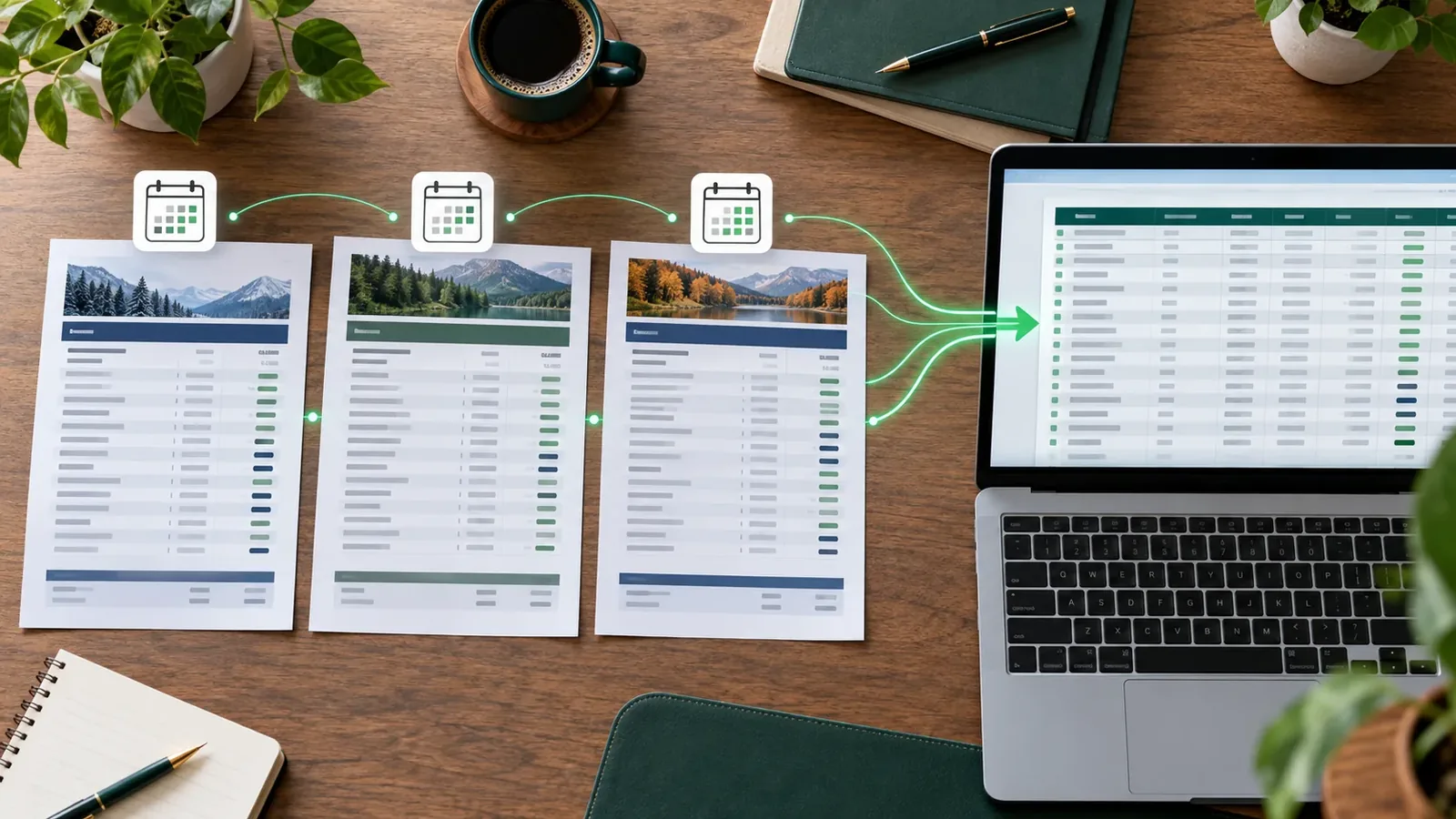
A single transaction file makes it easier to search a year of activity, prepare tax records, or hand a clean ledger to a bookkeeper. The challenge is that each statement can use different headers, date formats, or page layouts. Combining files without checking those differences can put amounts in the wrong columns.
Prepare the statements first
- Use original text-based PDFs when possible; scanned image statements are not supported by this PDF parser.
- Keep statements from one bank account together. A combined file with multiple accounts needs an account identifier for each row, which the converter does not automatically add.
- Check the date range on every PDF. Consecutive monthly files sometimes overlap by a day or omit a short period.
Merge in the converter
- Open the converter and select Merge into one file in the upload area.
- Choose multiple PDF statements at once or drag them onto the drop zone.
- Wait for each file to finish. If a statement fails, the page reports it; do not assume its transactions were included.
- Inspect the combined preview, edit any misread cells, and exclude headings or totals that slipped in as rows.
- Choose CSV (Universal) or Excel (.xlsx), then export the merged data.
Merge bank statement PDFs in the free converter
How differing columns are handled
The converter aligns columns by normalized header names when merging. For example, Amount and Balance remain separate fields even if two statements place them in different positions. A column that appears in only one file stays in the merged output with blank values for other files. That preserves data but still requires a human review of unusual bank-specific headings.
| Statement A header | Statement B header | Check in merged file |
|---|---|---|
| Date | Transaction Date | Dates land in the intended column |
| Debit | Withdrawal | Money out is consistently signed |
| Credit | Deposit | Money in is consistently signed |
Check for duplicate rows and missing periods
Compare the first and last dates from each source statement with the merged preview. Search for the same date, description, and amount appearing twice at statement boundaries. Do not delete a pair merely because the amount matches; recurring payments can be legitimate. Confirm the source PDFs before excluding a row.
Sorting is only reliable when every extracted transaction has a usable date. If some rows have blank or ambiguous dates, resolve them before treating the CSV as a chronological ledger. Compare monthly transaction counts or totals with each PDF as a final check.
When to keep the files separate
If you need one CSV per statement, choose Keep separate (ZIP) instead of Merge into one file. It processes the PDFs together and downloads the individual results in a ZIP. That is useful when your accountant requests month-by-month files or the statements have incompatible layouts.