How to Import Bank Transactions into QuickBooks Online from a PDF
October 27, 2026 · Mirza Arham
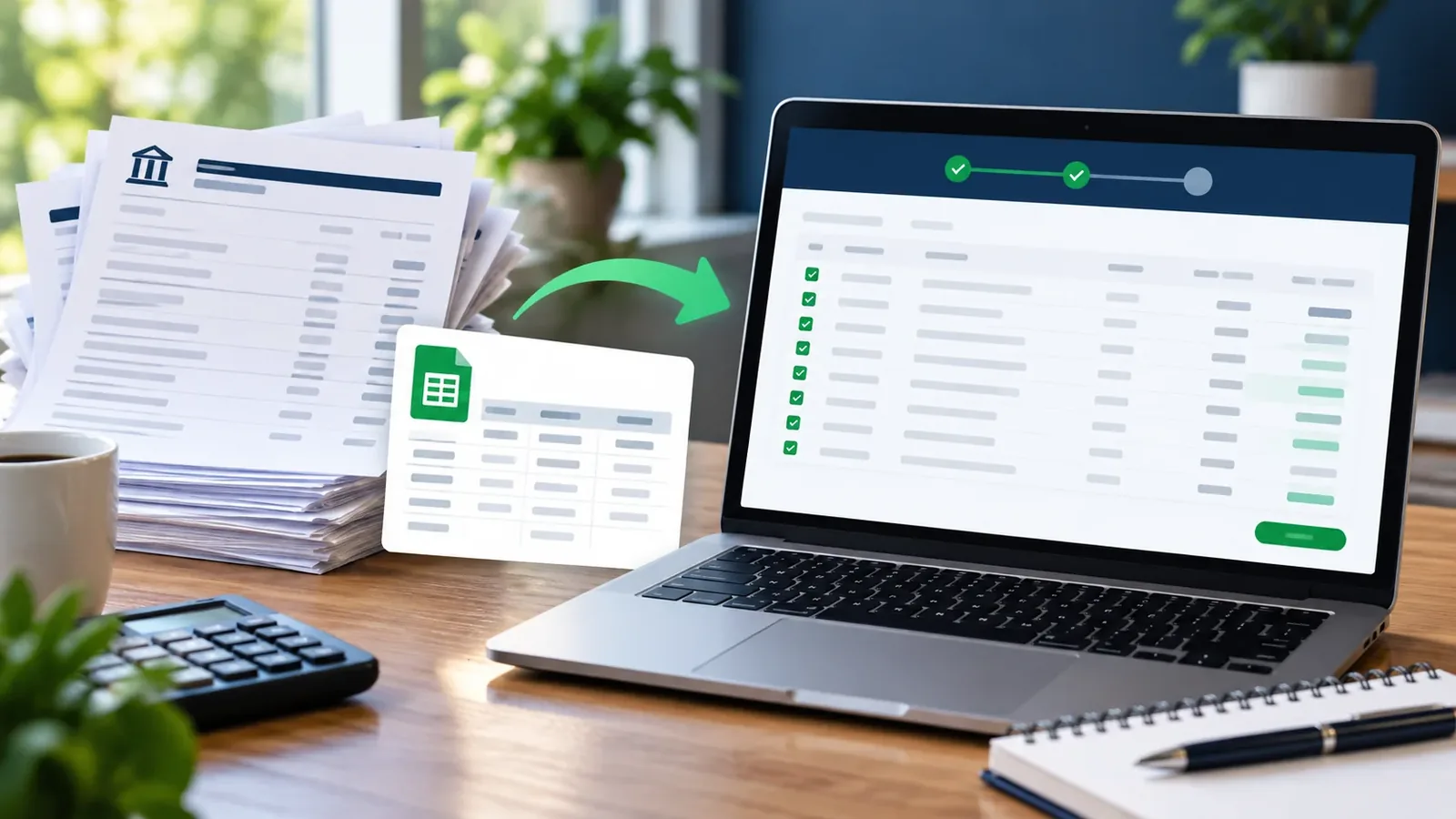
If your bank offers only a PDF for an older period, you can extract its transactions into a CSV and upload that file to QuickBooks Online. Treat the PDF as the source of truth: review the CSV before and after import, especially if your bank feed already contains some of the same dates.
Choose the right route
QuickBooks Online supports manual CSV uploads for bank transactions. A CSV with Date, Description, and Amount is often the simplest route. It also supports a separate Credit and Debit layout, subject to the import mapping in your QuickBooks account. Desktop Web Connect (.qbo) is a different workflow and may require a bank-issued file or supported institution details.
See Intuit’s current CSV format guidance
Step 1: Extract the PDF into CSV
- Open the PDF-to-CSV converter and add a text-based statement PDF.
- Review the preview. Correct split descriptions, missing amounts, and unwanted subtotal rows with the edit controls.
- Export CSV (Universal). If the PDF is a scan with no selectable text, obtain a digital statement or OCR it first.
Convert a bank statement PDF to CSV
Step 2: Prepare the columns
Keep one transaction per row and a single header row. A three-column file uses Date, Description, and Amount; outflows are negative and inflows positive. If you use separate Debit and Credit columns, put each value in the correct column and leave the other blank. Keep dates consistent and remove currency symbols or thousands separators from numeric cells if the import rejects them.
| Date | Description | Amount |
|---|---|---|
| 2026-10-02 | Office supplies | -24.50 |
| 2026-10-04 | Client transfer | 250.00 |
The sample rows are fictional. Before uploading, compare the total inflows and outflows with the original statement and check that each amount has the right sign.
Step 3: Upload and map in QuickBooks Online
- Open the bank transactions area for the correct account in QuickBooks Online and choose its manual upload option.
- Select the CSV and map the date, description, and amount fields to the corresponding columns.
- Confirm the date format and preview the transactions before completing the import.
- Review the imported list for duplicates and match existing entries instead of adding them twice.
QuickBooks changes its navigation from time to time, so follow the labels shown in your account. If an upload fails, Intuit recommends checking column mapping, date formatting, and extra characters or symbols in amount fields.
See Intuit’s CSV import troubleshooting
Avoid duplicate months and partial imports
If a live bank connection already brought in October 1–15, remove or skip those CSV rows before uploading October 1–31. Keep a copy of the exact CSV you imported and note its date range. After import, reconcile the account against the bank statement rather than assuming the upload completed every row.