How to Convert PDF Bank Statements to Excel Locally (Ultimate Security Guide)
May 26, 2026 · Mirza Arham
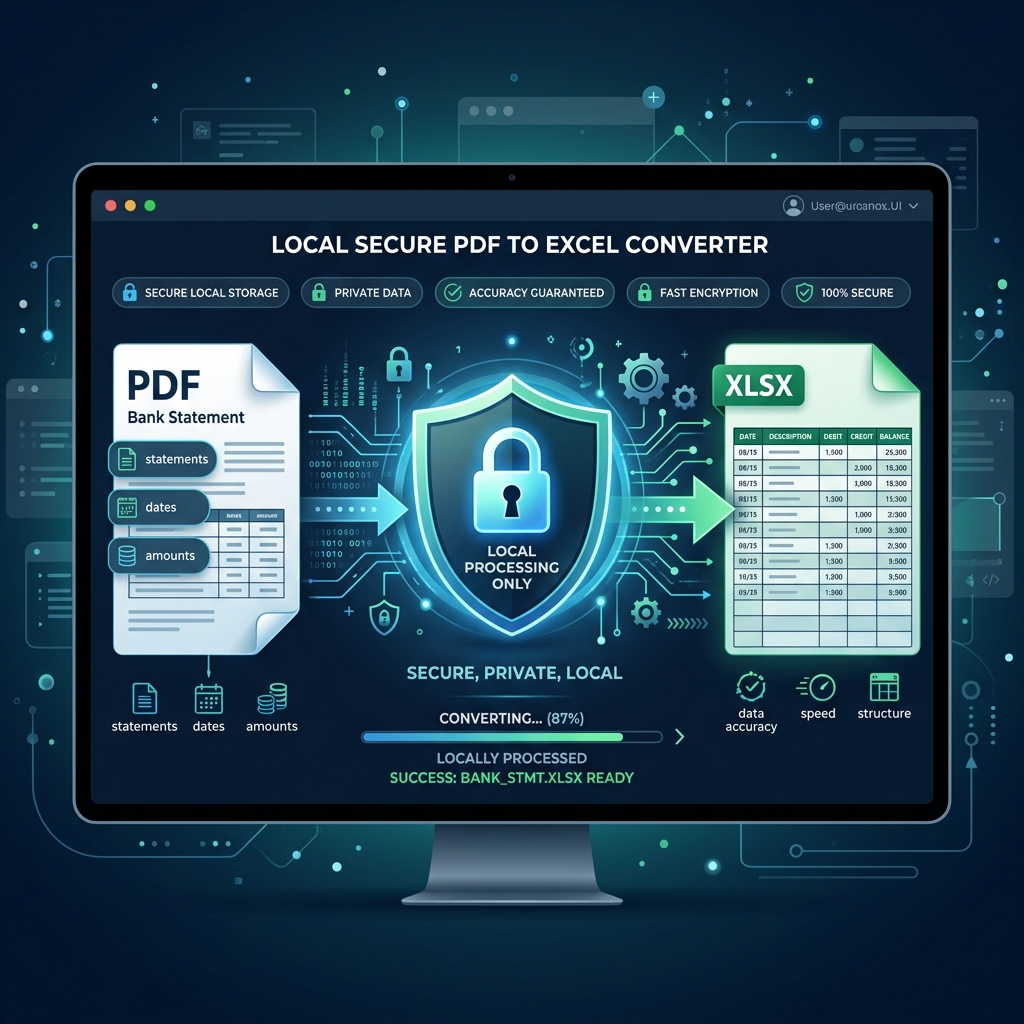
For accountants, bookkeepers, and business owners, reconciling monthly bank statements is a routine chore. However, extracting transaction tables from a locked PDF statement into a functional Microsoft Excel sheet often results in formatted nightmares: shifted columns, wrapped text lines, and scientific notation glitches.
While many online utilities claim to convert these files instantly, they carry a hidden, high-risk trade-off: your private financial data is uploaded to their cloud servers. In this comprehensive guide, we analyze the security hazards of cloud-based converters, dissect native Excel extraction methods, and reveal how to convert PDF bank statements to Excel locally inside your browser—with zero file uploads.
The Hidden Risks of Cloud-Based PDF Converters
Most PDF-to-Excel tools operate on a standard server-upload architecture. When you drag your statement onto their website, the file travels over the internet to their database, where a Python parser or commercial OCR service reads the text.
If you are handling financial logs, this introduces massive compliance and security vulnerabilities:
- Data Breach Exposure: If the converter's database or cloud bucket is poorly secured, your client's transaction history, account numbers, and bank balances can be exposed to hackers.
- Regulatory Violations: Uploading client financial details to unvetted third-party servers violates standard data confidentiality terms, CPA compliance codes, and privacy acts like GDPR or CCPA.
- Identity Theft Targets: Bank statements contain names, physical addresses, tax details, and transaction histories—making them prime targets for identity thieves.
Method 1: The Native Excel "Get Data" Method
If your PDF bank statement is digital-native (meaning you can highlight and select the text with your mouse pointer), Microsoft Excel (Office 365 or Excel 2021+) offers a built-in connector that doesn't require third-party uploads.
To use Excel's native PDF connector, follow these steps:
- Open Microsoft Excel and create a new blank workbook.
- Navigate to the Data tab in the top ribbon.
- Click Get Data > From File > From PDF.
- Locate your bank statement PDF on your local drive and click Import.
- Excel will open a Navigator window displaying all detected tables. Select the relevant transaction table.
- Click Load to import the table into your sheet, or Transform Data to clean up formatting issues in Power Query.
Why this method falls short: While Excel's built-in connector is secure, it is highly sensitive to document layouts. It struggles to align columns when deposit and withdrawal logs are separated, fails to concatenate multi-line transaction memos (resulting in empty cells or offset rows), and cannot process scanned image statements or mobile photo captures.
Method 2: The Browser-Local Converter (Best for Security & Accuracy)
To bridge the gap between security and formatting precision, browser-local converters process files using WebAssembly or local JavaScript libraries inside your browser's memory (RAM).
Our PDF to Excel tool uses this zero-trust architecture. Here is how the process works on your machine:
- Local File Reading: The web app utilizes the HTML5 File API to read the PDF file directly from your disk as an array of binary bytes.
- RAM Extraction: The client-side parser reads the text layers, maps vector positions, and groups transaction lines locally in browser memory.
- Coordinate Heuristics: Special parsing scripts clean bank-specific layouts (like separating credit columns or joining wrapped description lines) before generating the table.
- Excel Compilation: The tool compiles a native XML Spreadsheet (.xlsx) blob and triggers a browser download. No bytes are sent over the internet.
Competitor Analysis: How Local Processing Compares to Cloud Tools
| Feature / Aspect | Cloud Tools (e.g. DocuClipper) | Excel Power Query | Local Browser Engine (Our Tool) |
|---|---|---|---|
| Privacy & Uploads | Uploads PDF to cloud servers (High Risk) | Processes locally (100% Secure) | Processes locally in browser RAM (100% Secure) |
| Scanned / Image PDFs | Supported via cloud OCR services | Not supported (returns errors) | Supported via browser-local Tesseract OCR |
| Complex Layout Stitching | Supported but requires manual templates | Fails on multi-column or split tables | Auto-stitches Wells Fargo, Chase, BofA, and PNC layouts |
| Multi-Month Merging | Supported with paid subscriptions | Requires complex manual queries | Available in the free browser tool |
| Pricing | Freemium (per-page limits) | Free with Office license | 100% Free core engine (Unlimited conversions) |
Step-by-Step Guide: How to Safely Convert Your Statements
Follow this process to convert any digital or scanned bank statement into Excel without leaving your local environment:
- Navigate to our secure homepage or the dedicated PDF-to-Excel tool.
- Drag and drop your PDF bank statement into the dropzone. The parser begins reading the text immediately.
- Inspect the live preview grid. Verify that transaction dates, merchant descriptions, and amount signs (+/-) are aligned.
- Select Excel (.xlsx) from the output format dropdown.
- Click Download Excel to save the finished spreadsheet to your computer.
The 3-Point Reconciliation Checklist
Before importing the exported Excel spreadsheet into your bookkeeping software, always perform this quick verification:
- Verify Totals: Ensure the sum of all extracted deposits and withdrawals matches the starting and ending balance delta on the original PDF statement.
- Check Date Alignment: Confirm dates did not shift or repeat incorrectly, particularly around month-end overlaps or statement cycle breaks.
- Decimal Validity: Check that account numbers and transaction amounts do not display as text strings or scientific notations (e.g., 1.23E+11).
By adopting a local-first conversion workflow, you protect your accounting integrity, ensure complete client confidentiality, and save hours of manual data entry.